The Ultimate Plant & Personal Productivity Ecosystem

CareerBud.net unifies asset management, maintenance planning, workforce tracking, inventory finance and personal productivity — all in a flexible, easy-to-use platform.

About CareerBud.net

CareerBud.net was created by engineers working inside a UK-based power generation plant — not as a theoretical product, but as a daily operational necessity.

Over more than two years of continuous real-world use, the system was refined under real production pressure, solving practical problems in maintenance, workflow control, and operational efficiency. Every feature in CareerBud.net was tested, adjusted, and proven in live industrial conditions. What began as an internal plant-management tool evolved into a flexible, universal platform capable of adapting to almost any structured workflow.

CareerBud.net places no artificial limits on how it can be used. The same tools that manage industrial assets, preventive maintenance, labour efficiency, and inventory control can just as effectively support personal projects, health tracking, team coordination, or long-term goal management.

A single monthly subscription unlocks the full CareerBud.net ecosystem — asset structure management, task and shift planning, automated inventory debits, efficiency analytics, preventive maintenance workflows, and a dedicated personal productivity mode.

Built by engineers. Proven in production. Adaptable to any field. CareerBud.net delivers structured data, clear accountability, and actionable insight — so you can understand not just what is being done, but whether it is worth doing.
Key Features

Everything you need to run efficient operations and manage personal projects — modular, secure and insightful.

1️⃣ Asset-Centric Structure (Field → Object → Asset)

CareerBud is built around real-world objects, not abstract tasks. FULLY configurable hierarchy (line/machine/part, plant/system/equipment, etc.) EVERYTHING (tasks, issues, costs, labour, PPM, readings) attaches to assets ENABLES real lifecycle tracking. If needed to know to know which assets cause pain and cost money, not just that “tasks were done”.

2️⃣ Integrated Preventive, Reactive & Corrective Workflows (PPM + Issues + Tasks)

PPM, Issues, Reactives all feed into Tasks. Tasks drive responsibility and accountability. “Sort” workflow ensures proper closure with audit trail. If you need to know what was done, when, by whom, and why. It removes chaos and finger-pointing. Work is planned, assigned, done, and measured.

3️⃣ Labour & Efficiency Analytics (Scores-Based, Not Just Time-Based)

Complexity-based scoring (admin-defined). Tracks real effort, not just hours. Powers Chart 1 (Labour & Staff Efficiency). If you need to measure productivity and efficiency, not just time spent. Understand who is performing well, and who needs support. Managers finally see who actually delivers value, not just who is “busy”.

4️⃣ Financial Impact & Asset Value Tracking

Tracks asset value changes over time. Links maintenance work to financial outcomes. Depreciation + investment + operational cost logic. Funds vs Assets separation. If you need to see how your maintenance and operational decisions impact asset value and overall financial health. Move beyond just tracking costs to understanding value creation and preservation. It answers executive-level questions: “Is maintaining this asset still worth it?”

5️⃣ Store / Inventory with Automatic Consumption Logic

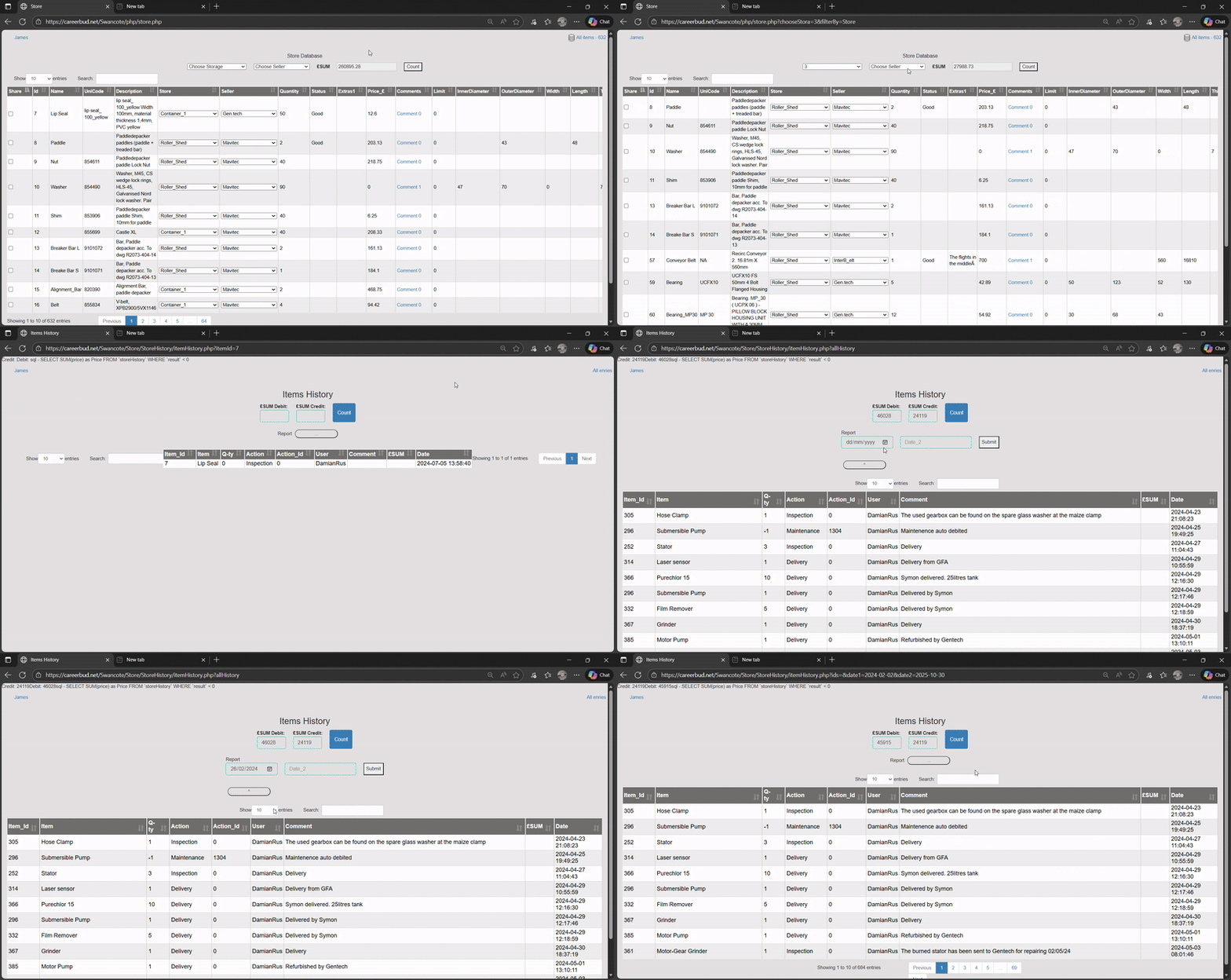
Parts linked to assets. Automatic deduction based on job descriptions. Full traceability via Item History. Financial impact reflected in analytics. If you need to control inventory usage and costs accurately. Eliminates manual errors and ensures that every part used is accounted for financially. Provides insights into inventory trends and helps optimize stock levels.

6️⃣ Flexible Readings & Custom Analytics

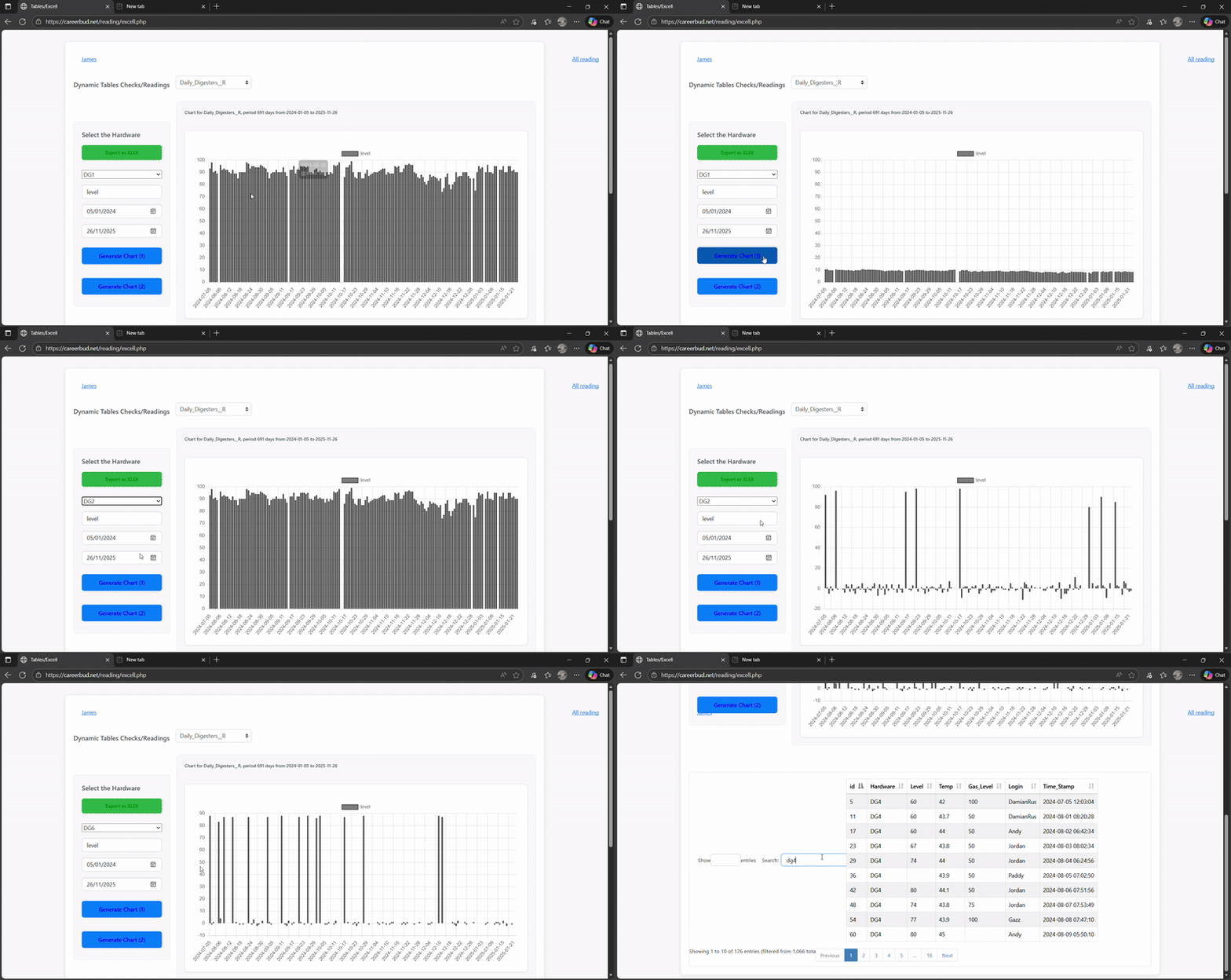
Not everything is a task or cost. User-defined tables for any periodic data. Supports sensors, observations, KPIs, conditions. Built-in charting + Excel export. Interval-based analytics. If you need to track periodic data that doesn't fit into traditional task or cost categories. Today maintenance, tomorrow quality, safety, or performance data.

Pricing

Simple monthly subscriptions that scale with your team. Start small, upgrade as you grow.

Personal

£99 / month

Up to 5 users

  • All features including:
  • Dashboard, All job workflows
  • Store
  • Analytics
  • Finance
  • Readings
  • Reporting

Business

£249 / month

Up to 15 users

  • Everything in Personal
  • Better filtering by shifts/users
  • Enhanced XLSX import/export
  • Remote support

Professional

£499 / month

Up to 50 users

  • Everything in Business
  • Priority support
  • Advanced reporting workflows
  • Stronger role & access control
Optional add-ons
Add seats or services only when you need them — no heavy upfront costs.
Extra users £10 / month per 1 additional user
Onboarding & training £199 one-off
Customers data integration £99 (one-off import/setup per database)
Individual/Custom report £50 (one-off setup per report)

FAQ — CareerBud System Guide

Quick answers based on the real CareerBud workflow and system logic (Chapters 1–9): structure, dashboard, issues, PPM, tables, analytics, finance, store, and readings.

A Field is any object or subject you want to monitor over time — something that consumes your time, labour, or money (plant, line, vehicle, system, project, etc.).

  • Asset: has a starting value; investments increase value; wear and losses decrease value.
  • Not Asset: costs are treated as non-recoverable operational spend (no value accumulation).
  • Funds: company money/capital available (cash, card, accounts).

Set Value sets the initial monetary value for a Field of type Asset (baseline value the system starts from).

Only the Administrator can create/rename first-level Fields via Settings → General Settings.

Go to Settings → Team and add the user. Employee Login and Password are used for sign-in; Email is used for notifications.

No. After creating a user, the Administrator must assign permissions in Settings → Access. Without Access configuration, a user may have limited or no operational rights.

In Settings → Shift Settings, the Administrator assigns users to shifts and builds the schedule. The Shift tool can be used to monitor performance per person and per shift.

Day-to-day operational permissions, such as:

  • create/view/comment/sort tasks & issues
  • edit/delete issues (for authorised users)
  • assign responsibility (tasks/issues/PPM/correctives)
  • view all users’ tasks (for managers/admin)
  • return incomplete/incorrect work

Permissions to change the object structure: add new structural elements, and edit names/descriptions of objects and dependent elements.

  • Create/edit/delete PPMs
  • Manage the Store (warehouse): quantity & financial tracking, auto-write-off settings
  • Edit seller/store databases

Who receives the system’s automatic email notifications.

  • Access to Settings and system configuration
  • Assets & finances management
  • Delete old logs via Settings
  • Manage third-level assignments via Sources/Links
  • Manage Daily Reading
  • Define Types (task/issue/PPM types and their score values)
  • View and analyse reports

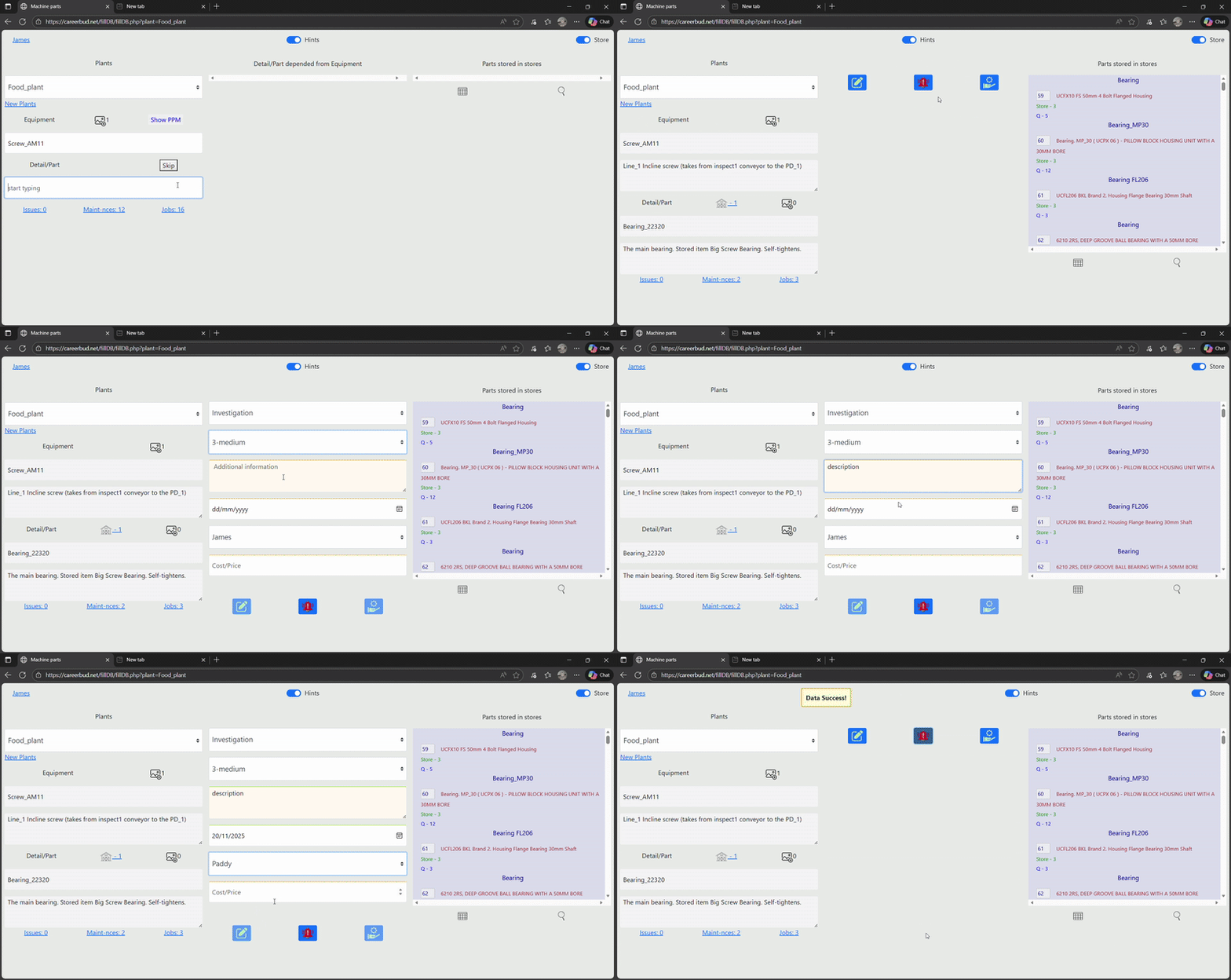
Open the 2nd menu item in the main dropdown (its name depends on how the Admin named the 3 structure lists). It is a core module for adding/editing objects, creating issues/reactives, linking parts, attaching docs, and managing PPMs.

Start typing a name in the input. If it doesn’t exist, the system offers to create it. Fill the required fields and click Add new object to DB.

You can edit only 2nd and 3rd list items in this module. The 1st list (Fields) is edited only via Settings → General Settings.

Where to do it

  1. Open the Structure module (2nd item in the main dropdown; name depends on your 3 lists).
  2. Select the object the Issue belongs to:
    • Choose a List‑1 Field (plant/line/project)
    • Choose a List‑2 Object (machine/system)
    • (Optional) Choose a List‑3 element (part/detail) — recommended if you later want automatic Store write‑off.

Create the Issue

  1. Click the red bell button (Issue). A form opens.
  2. Fill all fields:
  • Issue Type — defined by Admin in Settings → Types; type controls score/points for analytics.
  • Criticality / Urgency — how serious and how fast it must be solved.
  • Description — what is wrong and what you observed.
  • Date — if empty, the system uses today’s date automatically.
  • Responsible — who will handle it (must be a member of team).
  • Cost (optional) — estimated or contractual cost; can be edited later when closing.
  1. Click the red bell again to confirm and create the Issue.

What happens next

  • The Issue appears in the responsible person’s workflow (Dashboard / Issues list).
  • When it is closed through Sort, the Issue moves into Sorted Issues (Correctives) with the closure details.

Tip for warehouse automation

If you want automatic Store write‑off on closure, make sure the Issue is linked to a List‑3 part and that part has a Store item linked to it.

Issue Types are configured by the Administrator in Settings → Types. Each type has assigned points so CareerBud can calculate labour intensity and performance metrics.

A Reactive is unplanned work performed on an object (not scheduled beforehand). It contributes to labour productivity calculations and financial metrics.

Select the 1st-level Field, click Store, select 2nd-level Object, then select the 3rd-level element. Choose a part from Parts stored in the stores and double-click to confirm the link.

Yes. Click the image/document icon near the structure list inputs to attach manuals, SOPs, and other files to elements.

Where you will see “Show PPM”

  1. Open the Structure module from the main menu (it’s the 2nd item in the dropdown). The section name depends on how the Administrator named the 3 structure lists (e.g. Line / Machine / Equipment).
  2. On this page you will see the structure inputs (List 1 → List 2 → List 3). The Show PPM button appears only when you are working with a 2nd‑level object.
  3. Select a List 1 item first (Field / Plant / Line).
  4. Then select a List 2 item (Machine / Object / System). As soon as a valid List‑2 item is selected, the system shows Show PPM next to the List‑2 input.

Step‑by‑step: create a new PPM

  1. Click Show PPM. The button changes to Hide PPM and you will see the list of PPMs already created for this object.
  2. Click Add PPM.
  3. Fill the form (tooltips can guide you). Key fields:
  • Type — choose a PPM type (created by Administrator in Settings → Types).
  • Job Date — the date the job was last performed. CareerBud uses this + frequency to calculate due/overdue status.
  • Freq (Frequency) — how often it must be repeated (e.g. 30 = every 30 days).
  • Description — what the PPM includes (steps, scope, standard).
  • Task for — assign a person responsible (if your permissions allow).
  • Urgency — optional priority signal (if used in your configuration).
  1. Click Submit to save. The PPM is now linked to that List‑2 object and becomes visible in:
  • the Show/Hide PPM list for the object,
  • the PPM Table (Tables / main menu PPM),
  • Dashboard indicators (e.g., overdue border when it expires).

Permissions (important)

  • Creating/editing/deleting PPMs is controlled by Settings → Access (Paragraph 3).
  • PPM Types and their scores/points can be created/changed only by the Administrator in Settings → Types.

Common issues

  • Show PPM not visible → a List‑2 object is not selected yet, or you do not have the required Access rights.
  • PPM becomes overdue immediately → Job Date is too old or Frequency is too small for your process.
  • Not assigned → Task-for may be restricted or left blank.

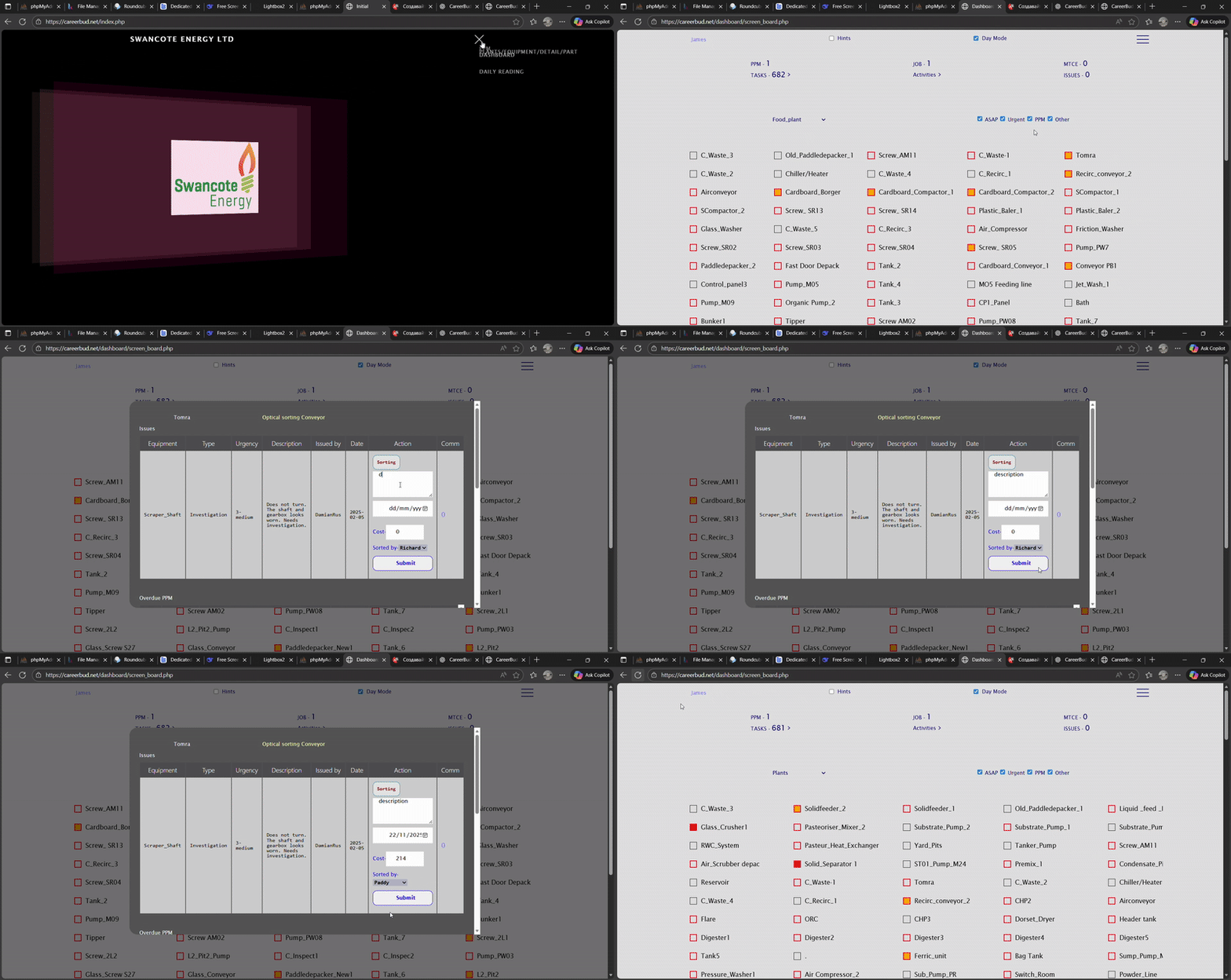
Each 2nd‑level object on the Dashboard has a small square indicator showing its current state.

  • Red fill — active Issue with urgency 5 (must be solved immediately).
  • Orange fill — active Issue with urgency 2–4 (important, but below critical).
  • Red border only — PPM is overdue for that object.
  • No colour change — urgency 1 does not change colour (FYI rule) or no issues detected.

How to act

  1. Click the object in the list.
  2. The Sort window opens and shows active Issues / overdue PPMs for that object.
  3. From Sort, you can close Issues (create Correctives) or execute PPMs (if authorised).

Click any 2nd-level object in the bottom lists. The Sort window shows active Issues/PPMs and is used to close Issues or execute PPMs.

They show daily activity totals. As you complete work, counters increase (e.g., PPM-0 → PPM-1). At the start of a new day, they reset.

Regular users see only tasks assigned to them. Admins and authorised task managers can view all tasks and filter by shift or user.

A Task is an instruction that assigns responsibility to a person (or shift) and expects execution. Tasks can come from PPMs (planned work), Issues (faults/problems), or manual assignments by an Administrator or authorised user.

Where to find Tasks

  • Dashboard → TASKS (top panel): click the blue arrow to open the Tasks table.
  • Sort window: when you open an object from the Dashboard, you may see tasks/PPMs/issues related to that object.

What a Task usually contains

  • Linked object (Field / 2nd-level object, sometimes 3rd-level part)
  • Type of work (PPM / Corrective / Reactive / other admin-defined types)
  • Urgency / priority (if used in your setup)
  • Assigned person (Task For)
  • Date created and other metadata

How to complete (close) a Task

  1. Open Dashboard → TASKS.
  2. Click the green gear icon on the task row to open the Sort window.
  3. Fill the form: work description, completion date, cost (can be edited), and who actually performed the work.
  4. Click Submit to confirm completion.

After submission the task is removed from active work and a corresponding history record is created (e.g. Corrective / Sorted Issue or PPM execution). This also affects labour and cost analytics.

Return / re-open (quality control)

Administrators (or authorised supervisors) can Return a completed job if it was done incorrectly or not fully. The task/issue comes back as active work, while historical labour/cost values remain counted. Store write-offs are not reversed.

Permissions

  • Who can create/assign/manage tasks is controlled in Settings → Access (paragraph 1).
  • Admins and authorised users can see all tasks; standard users see only their own.

Quick difference

  • Issue = a problem/fault recorded in the system.
  • PPM = planned periodic maintenance definition.
  • Task = responsibility assignment (“who must do it”).
>

Click the green gear icon in the Tasks table. In the Sort window, fill work description, completion date, cost (editable), and performed-by user, then submit.

Auto write-off happens only if:

  1. The selected 3rd-level element has a part linked from Store.
  2. The work description contains recognised replacement keywords (e.g., “fitted new”, “replace”, “changed”, etc.).

If no quantity is specified in the description, the system assumes 1 item.

No. PPM execution records description and cost, but does not trigger Store write-off.

Staff Actions shows each user’s activity for selected ranges (today, 4 days, week, month), including PPMs, correctives, reactives, issues, comments, and the last action. Full logs are admin-only via Settings.

Tables provide sortable, searchable views of system records. Authorised users can edit certain tables; edits update the database.

  • PPM: description
  • PPM Date: last performed date
  • Freq: frequency in days (e.g., 60 = once every 60 days)
  • Exp Date: overdue/expiry date
  • Duration & Cost: cumulative totals across executions

Filter the PPM table to the items you want, open Execution Control, set Date1 and Date2, then generate a report. Column headers are PPM IDs; clicking shows PPM name/description.

“C” shows PPMs which, if executed now, will become overdue within the next 14 days. Hover tooltips explain each control.

Regular users can view, comment, change Status, and open Sorting. Admins/authorised users can also delete, change Urgency, and reassign Task for.

Return marks a corrective as not properly solved, moves it back to Issues, and assigns it to the user who closed it. Time/cost/comments remain; written-off parts are not returned; it affects productivity metrics. Admin-only.

No. It’s read-only. Authorised users can delete entries. Both Reactive Work and Sorted Issues include a Count tool to sum costs after filtering.

Analytics is Administrator-only (Main menu → ANALYTICS). It tracks labour intensity, staff efficiency, operational costs, and financial evolution over time.

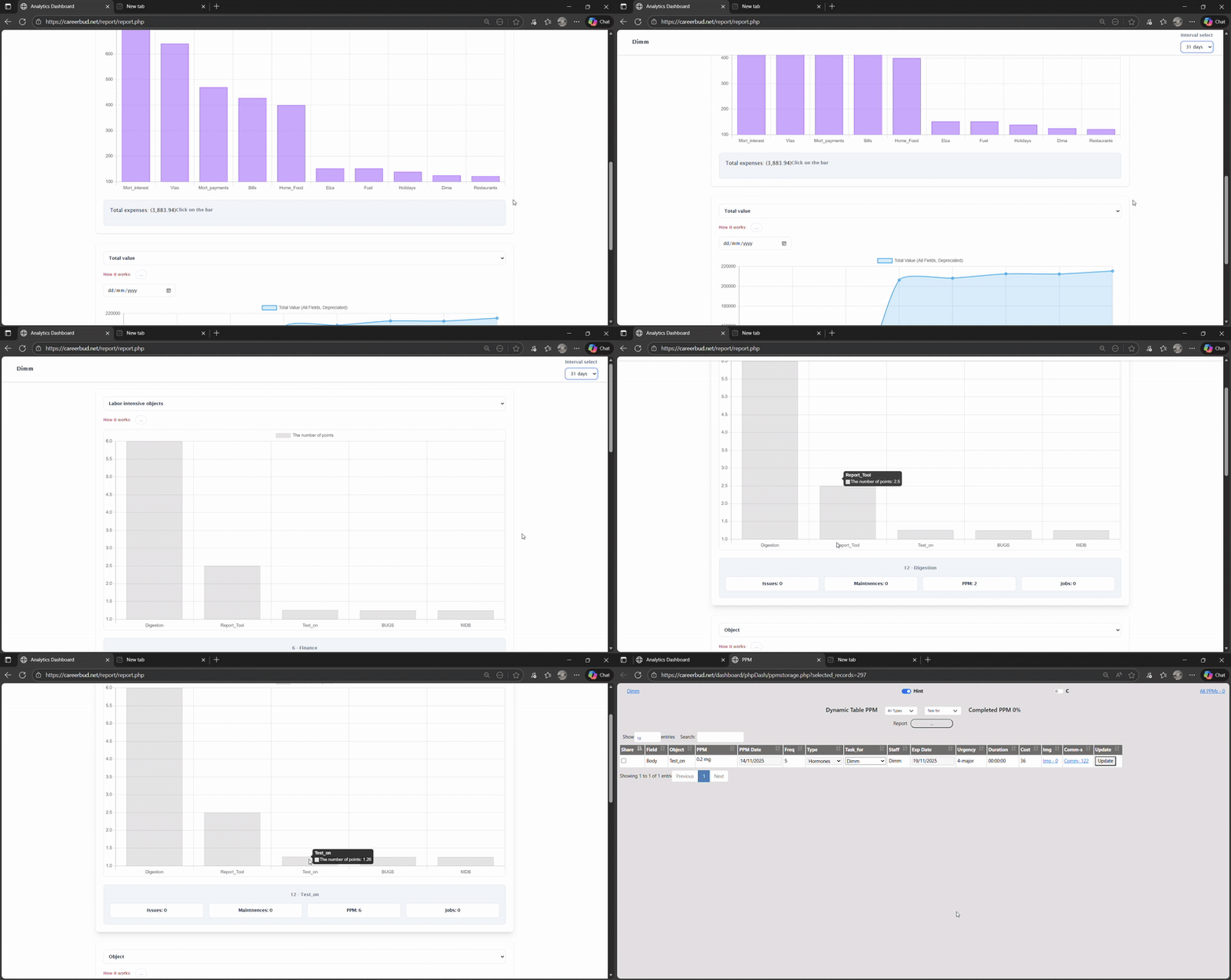
Top 5 most labour-intensive 2nd-level objects (by points). Default view is last 4 days; Interval Select changes the lookback period. Clicking a bar opens the work history for that object.

Based on quantity and complexity of completed work (PPM/Corrective/Reactive), using the scores configured by the Admin in Settings → Types. Clicking a bar drills into that user’s work history.

Top 10 most expensive objects (2nd-level or 1st-level depending on selector). Costs are summed from operation expenses over the chosen interval; clicking a bar shows which work created those costs.

In Chart 3, Interval Select is a step size (e.g., 31 days per point), not a simple lookback period. The rightmost point is today; each point to the left is today minus N×interval, back to the first financial record.

  • Total value: value of all assets + funds over time
  • Fields values: value evolution of 2nd-level objects (investments increase; wear/losses/depreciation decrease)
  • Funds only: balances of Funds (type 3) assets over time

Period controls how far back the graph goes (history depth). It is different from Interval Select (step size).

It calculates total funds (type 3), income, tracked expenses, untraceable losses, and inventory/stock investments for the selected period. To enable it, select a Period and switch Chart 3 to Funds only.

CareerBud can have multiple Funds assets (cash, card, accounts), but automatic debit balancing is applied only to the first created Funds asset. Other debits/credits are manual via Assets → Act.

Main menu → Settings → Sources / Links. Use Assets for value/depreciation and manual Act operations; use DebCred to track all debit/credit records.

CareerBud shows the current monetary value of an asset/field using a simple, transparent formula:

C_Value = I_Value − Devalue + DebCred
  • I_Value — your baseline starting value (what the asset is “worth” at the beginning).
  • %-Dev — yearly percentage change:
    • positive = depreciation (value decreases over time)
    • negative = appreciation (value increases over time)
  • Devalue — the amount lost or gained since the earliest record (compounded by %-Dev).
  • DebCred — net manual adjustments (credit = income/increase, debit = losses/decrease).

Practical reading

  • If Devalue grows, the asset is ageing/wearing (or appreciating if %-Dev is negative).
  • If DebCred changes, someone (or the system) recorded manual money movements.
  • C_Value is what you should use in Analytics → Total Value / Funds views.

%-Dev is yearly percentage change: positive = depreciation, negative = appreciation. Devalue is the baseline change from the earliest record to today (compounded). If no record or no time passed, Devalue = 0.

Act appears only for Funds (type 3) assets. It lets authorised users add manual credit (income) or debit (irrecoverable loss) operations.

Each operation creates a primary record (type, objects, Action_id, timestamp) and a balancing record with a negative value linked to a Funds asset (type 3). This keeps internal financial consistency.

Filter the table to the records you need, then click Count to sum the Cost column.

No. CareerBud focuses on operational finance: identifying expensive objects, tracking costs, value evolution, and decisions — not statutory accounting.

Where to do it

Main menu → Store → bottom-left button Add item.

Use Prompts (recommended)

  1. On the Store page, click Prompts to enable tooltips.
  2. Hover any field to see what it means and how it is used.

Add a brand-new item (new parameters)

  1. Click Add item.
  2. Choose Store and Seller from dropdowns (type to search). If it doesn’t exist, the system offers quick-create.
  3. Fill the item identification fields (name/spec/part info) so it is unique.
  4. (Optional but useful) enter dimensions like length/width/thickness/max bar so you can filter later.
  5. Extras1 — location in storage (Box1, Shelf A3, etc.).
  6. Extras2 — unit price (per 1 item).
  7. Submit to create the item.

Important rule

Use Add item only when the item does not exist yet. If you are replenishing an existing item, update the Quantity cell instead (double‑click → enter new value → click outside → add document/conditions/comments).

Settings → Sources / Links → Storage/Seller (or the icon at top of Store page). Only Admin/authorised users can edit or delete these records.

In Store Table, double-click Quantity, enter new value, click outside. In the popup, enter document number/conditions/comments to track the operation.

  • If quantity ≤ limit → Status = Needed
  • If quantity > limit → Status = Good
  • If an automatic low-stock email is sent → Status = Reported

Use the top selectors (Storage/Seller) or any table filters. The system shows the total financial value for the displayed/filtered items.

Select the item checkbox and click the Delete icon at the top. Deletion is for authorised users only.

Item History is a dedicated warehouse movement log (Store → select item checkbox → List icon). £SUM is quantity moved × unit price. Filter and use Count to compute totals for debit/credit movements.

Readings tracks any time-based data: sensors, meters, conditions, observations, notes, even moods — anything you need to monitor as it changes over time.

Daily Reading → leftmost selector → + Table. Name the table and add at least two columns with unique names and types (numeric/text/date). Use Size to limit text length.

By default, the system keeps one value per day per column. If you enter a new value on the same day, it replaces the previous value.

By default, Readings stores one value per day per column. To record multiple values per day (or multiple sources/devices), use the middle selector:

  1. Go to Daily Reading and select your table.
  2. Click the middle selector (it may show NA).
  3. Choose + Details.
  4. Create a custom label, for example:
    • Morning / Evening
    • Tank_1 / Tank_2 / Tank_3
    • After sleep / Before sleep
  5. Select a column (rightmost selector), enter the value, and click Set Value.

These labels are stored in the tables under the Hardware column and can be used in Reading Analytics filtering.

Click Excel (top-right) to open Reading Analytics. Either export as XLSX or analyse on-page: choose table, choose Hardware/Details value, type column name(s), set period (default 28 days), then generate Chart 1 (absolute values) or Chart 2 (differences).

Get Access / Support Development

You can support CareerBud.net securely using Stripe or PayPal.
A monthly subscription gives you complete access to all CareerBud.net facilities: asset structure management, automated store debits, shift scheduling, efficiency analytics, preventive maintenance planning, inventory control, and personal productivity mode.

Choose Payment Method

Pay securely with your card or digital wallet.

Pay quickly using your PayPal account.

Careerbud.net Plan

Contact & Feedback

If you'd like to contact us, drop your details and we'll get back to you.